
Editor's note: the credential guidance in Step 4 has been revised to match Microsoft's current emergency access recommendations.
Introduction
Imagine this scenario: your organization's sole Global Administrator is unavailable, or you discover that all administrative accounts have been compromised in a sophisticated attack. You need access to critical systems, but your normal access methods aren't available. This is exactly the kind of nightmare situation that break glass accounts are designed to prevent.
In Microsoft Entra environments, break glass accounts (also known as emergency access accounts) serve as a critical failsafe. They provide a way to regain access to your infrastructure when normal administrative procedures aren't possible. In this post, we'll explore why they're essential and how to configure them properly.
What Are Break Glass Accounts?
A break glass account is a special-purpose administrative account that's configured with maximum privileges and minimal dependencies on standard authentication mechanisms. Think of it like an emergency spare key: it's stored securely and only accessed when you absolutely need it.
In a Microsoft Entra environment, a break glass account typically has:
- Global Administrator privileges (or equivalent highest-level permissions)
- Authentication that doesn't depend on your standard MFA system or Conditional Access policies
- Zero day-to-day usage (ideally, it's never used in normal operations)
- Auditing and monitoring specifically configured to track any access
Why Break Glass Accounts Matter
1. Protection Against Complete Lockout
The primary purpose of a break glass account is to prevent complete administrative lockout. Here are scenarios where you'd need one:
- Conditional Access policies gone wrong – A misconfigured policy locks out all administrators
- MFA system failure – Your MFA provider experiences an outage
- Authentication infrastructure compromise – An attacker gains control of your authentication service
- Accidental permission removal – All administrative roles are accidentally revoked
Without a break glass account, these situations could render your entire Microsoft Entra tenant inaccessible. That would be a disaster.
2. Business Continuity
Break glass accounts ensure that no single failure point can completely disable your organization's access to critical systems. This aligns with disaster recovery and business continuity best practices.
3. Security Incident Response
During a security incident, you may need immediate administrative access to:
- Disable compromised user accounts
- Reset passwords
- Review audit logs
- Enable enhanced monitoring
- Apply emergency security policies
A properly configured break glass account ensures you can act immediately without waiting for normal approval workflows.
How to Configure Break Glass Accounts in Microsoft Entra
Step 1: Create Dedicated Break Glass Accounts
Start by creating two break glass accounts (Not just one! Redundancy is important). These should be named clearly and not tied to any individual person.
To initially set up these accounts:
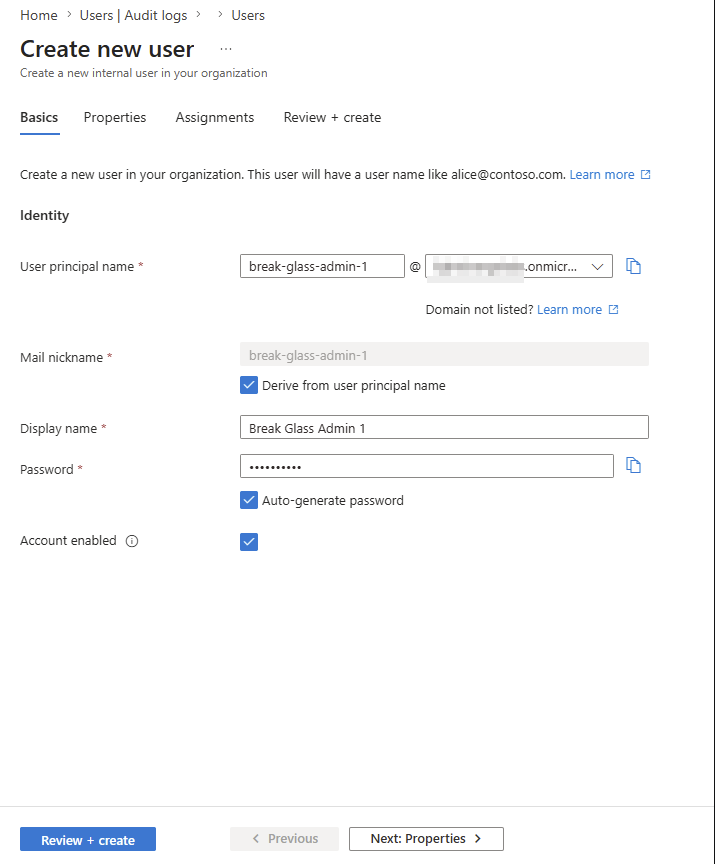
- Go to your Entra admin center -> Users -> New User
- Give the account a name and domain. Remember to give it a name that will indicate the account's purpose. Use the built-in "*.onmicrosoft.com" domain for these accounts, not your own organization's domain.
- Generate and securely store the account password.
- Click "Review + Create"
- Repeat for your second break glass account.
Step 2: Assign Global Administrator Role
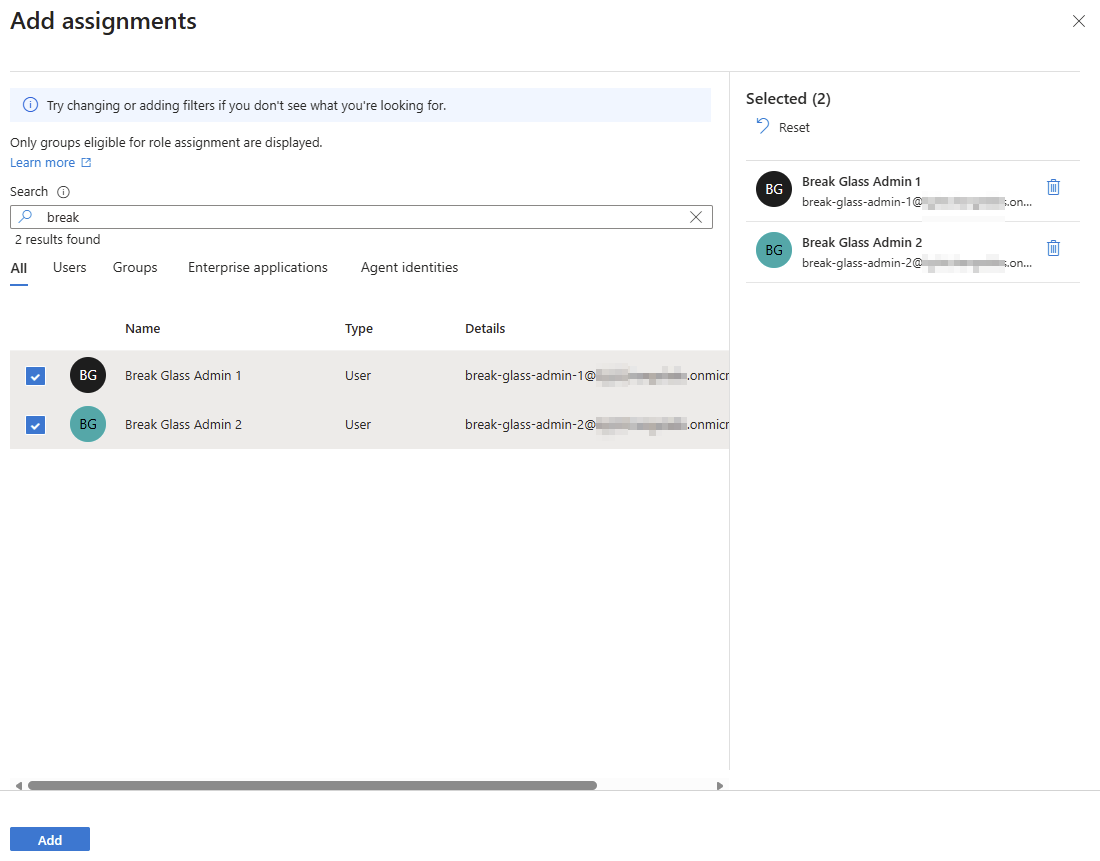
Next, assign the Global Administrator role to both accounts.
In Microsoft Entra Admin Center:
- In the sidebar, click "Roles and admins"
- Find and select "Global Administrator"
- Click "Add assignments"
- Add both break glass accounts
Step 3: Disable Conditional Access Policies for Break Glass Accounts
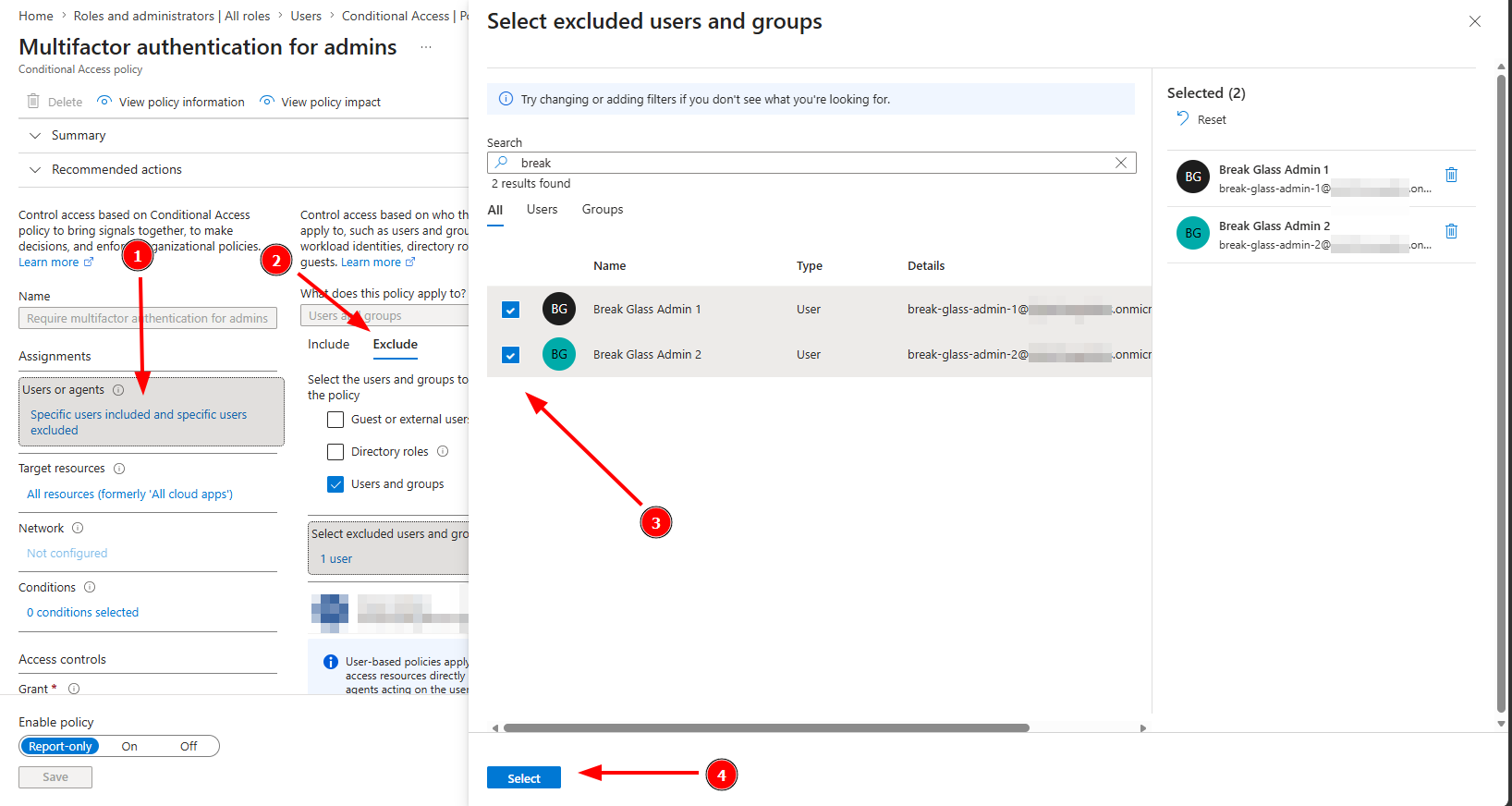
Break glass accounts must bypass your standard Conditional Access policies to ensure they remain accessible during emergencies.
In Microsoft Entra Admin Center:
- In the sidebar, go to Conditional Access -> Policies
- For each policy, exclude both break glass accounts from enforcement
- Document this exclusion clearly so it isn't inadvertently undone later
Step 4: Set Up Strong Credentials
Break glass accounts sit outside your Conditional Access policies, so it's important that they're individually hardened. There are two options to consider for this:
Path A: Passwordless. Register a FIDO2 passkey on a hardware security key, or use certificate-based authentication if your organization already handles PKI. This is what Microsoft's current emergency access guidance recommends. Both resist phishing and satisfy Microsoft's mandatory MFA requirements on their own.
Path B: A strong password plus an independent MFA method. A randomly generated password of 30 or more characters paired with a strong MFA method can be effective if passkeys or certificate-based authentication are unfeasible for your current situation.
- Register the MFA method directly on the account. These accounts are excluded from Conditional Access, so anything enforced through a CA policy won't reach them.
- Use a different method than the rest of your organization. For example, if your admins normally authenticate through an external MFA provider like Duo, use standard software OATH methods (like TOTP) on the break glass accounts. One provider outage should never take down both.
- Don't associate the accounts with individual employees. No personal phones, no employee-specific identities, nothing tied to someone who might leave or be unreachable.
- Store the token or key with the sealed credentials. The hardware that completes the sign-in belongs in the same safe as the password.
Step 5: Secure Credentials
Your break glass credentials need to be stored securely with restricted access:
- Use a physical safe to store physical credentials (sealed passwords, encrypted USB drives, hardware security keys, etc.)
- Geographically separate the physical credentials so an unexpected disaster in one location can't destroy both credentials
- Limit access so only key personnel can utilize these credentials
- Document the process with a secure procedure for accessing credentials
- Consider implementing a dual-control mechanism requiring two people to retrieve credentials
- Gather access logs to document whenever credentials are accessed
Step 6: Configure Monitoring and Alerts
Set up alerts for any break glass account activity. You want it to be immediately and loudly apparent that someone has logged into a break glass account.
There are a number of ways to go about this depending on how your organization is already handling log aggregation and alerting, but the general idea stays the same:
- All Entra login activity should be centrally logged and monitored, such as with a SIEM like Microsoft Sentinel, Splunk, or CrowdStrike Falcon.
- Configure alert rules for any activity from the specific break glass accounts' unique Object IDs (so a name change down the road won't break anything)
- When the alert rules are triggered, notification should be immediately sent to your security team and any other key personnel for their awareness.
- Whenever these alerts take place, a post-mortem review should be performed to assess why the break glass account was used, and by whom.
Step 7: Test and Validate Regularly
Test your break glass accounts quarterly to ensure no unexpected challenge interrupts a real emergency.
- Verify credentials still work (ideally in a non-production environment)
- Confirm role assignments are still in place
- Test access paths to critical systems
- Document test results
- Rotate the password on password-based accounts if needed (consider annual rotation)
Step 8: Document the Process
Create and maintain documentation that includes:
- Account names and purposes
- Access procedures – Step-by-step guide for retrieving and using credentials
- Escalation procedures – Who needs to be notified
- Incident response workflows – What to do after using break glass access
- Credential reset procedures – How to replace a credential that's suspected of compromise
Step 9: Implement Governance
Establish policies for break glass account management:
- Never use for daily operations – Create regular administrative accounts instead
- Immediate password rotation after any emergency use on password-based accounts
- Incident review – Analyze why break glass access was needed each time they're used
- Annual access reviews – Verify the accounts are still active and properly configured
Conclusion
Break glass accounts are a non-negotiable security control for any Microsoft Entra environment. They're your insurance policy against complete administrative lockout, a critical component of disaster recovery, and a requirement for many compliance frameworks.
The key is balance: make them secure and accessible, exclusive but redundant, and documented yet confidential. By implementing the steps outlined in this guide, you'll ensure that your organization can respond effectively to emergencies while maintaining strong security practices.
Standing these up is the easy part. Keeping them tested, documented, and monitored a year from now is where most teams lose the thread. If you want a second set of eyes on your Entra tenant, or someone to build the process alongside your team so you own it going forward, that's the kind of gap we close. Let's talk: hello@lightchange.com.